Configure MuMu
Configure MuMu before connecting it to Microbe Studio.
Network settings
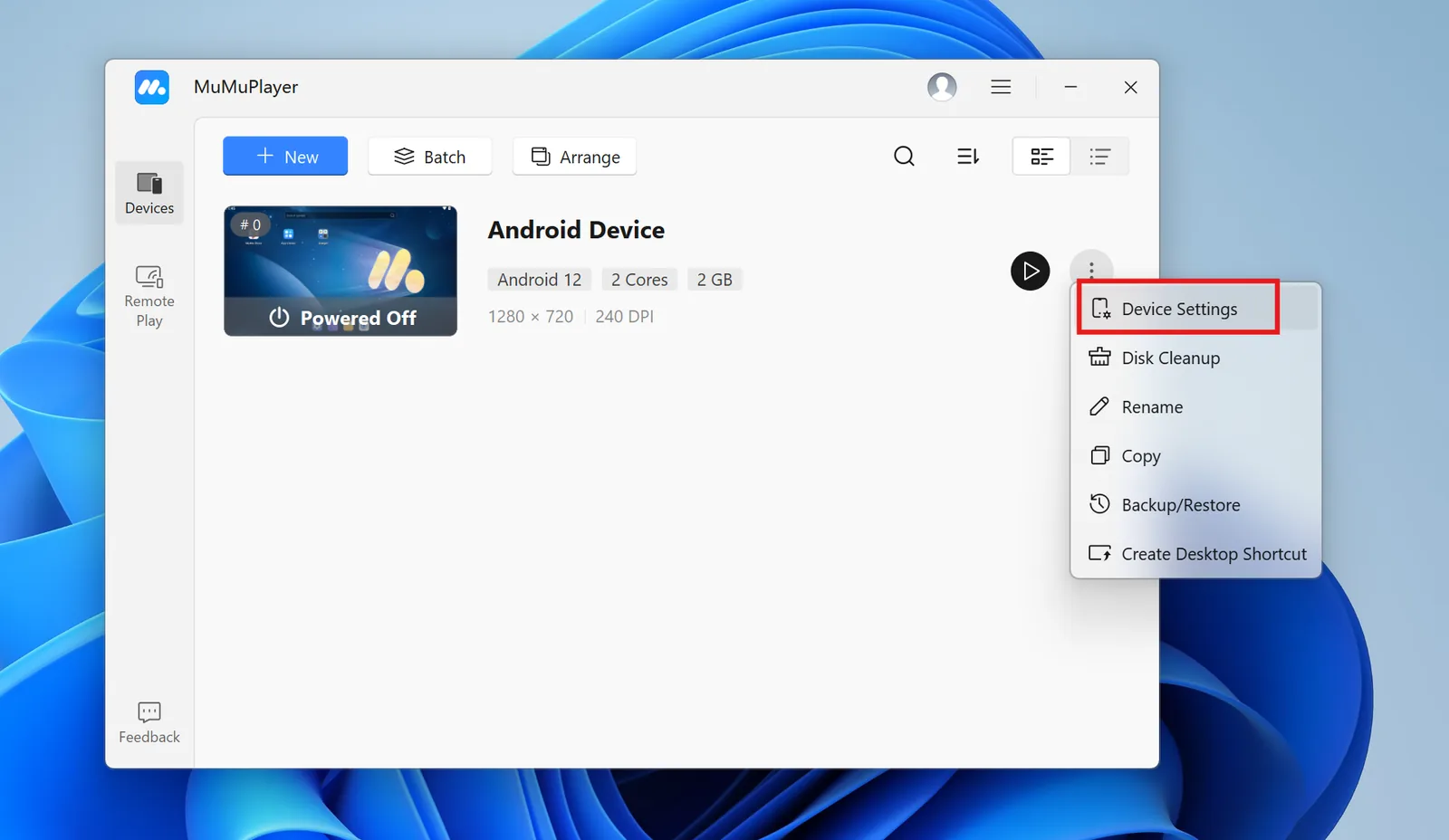
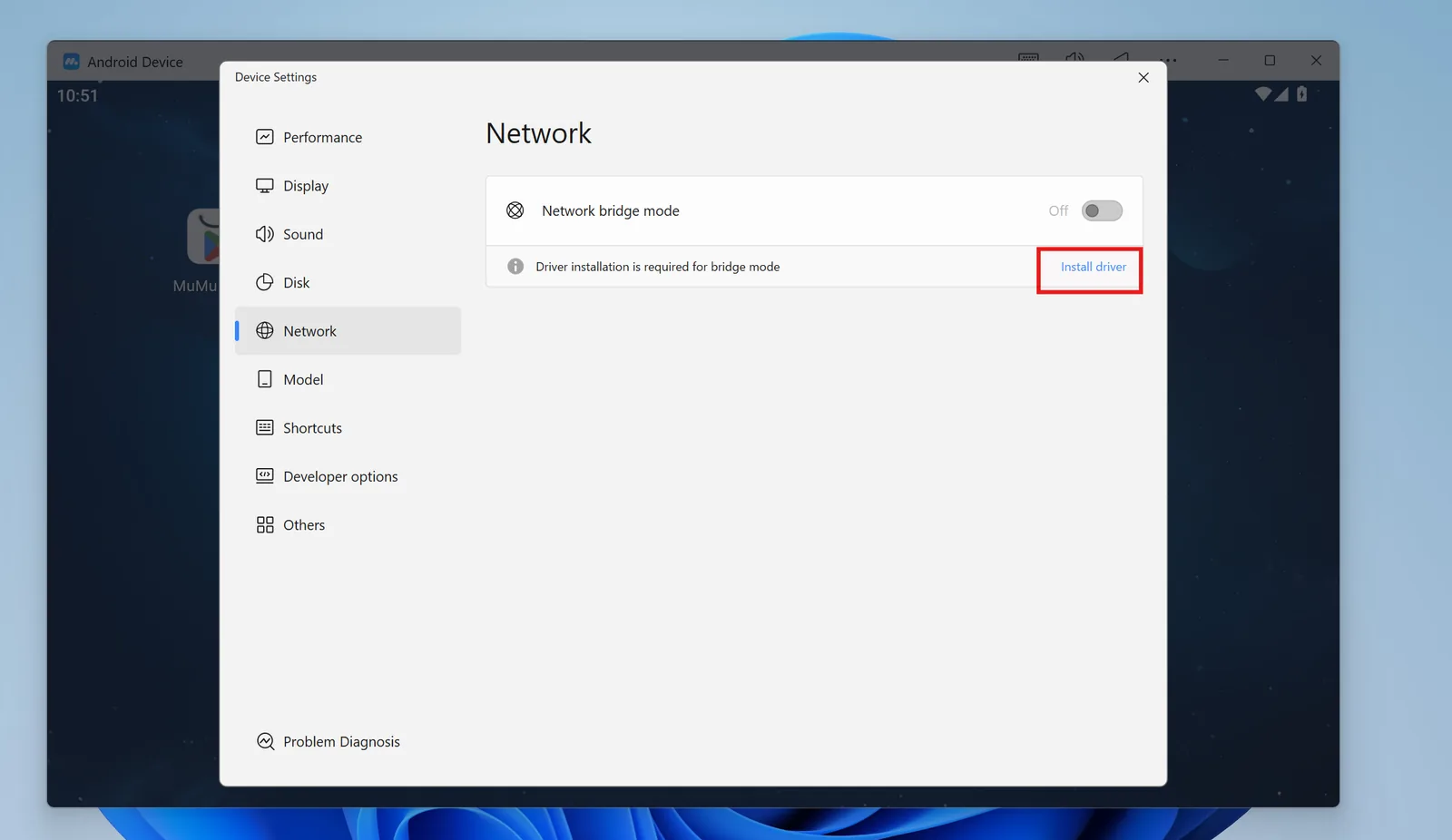
Open MuMu settings and check the network configuration.
In Network, select Install Driver if the driver is not installed.
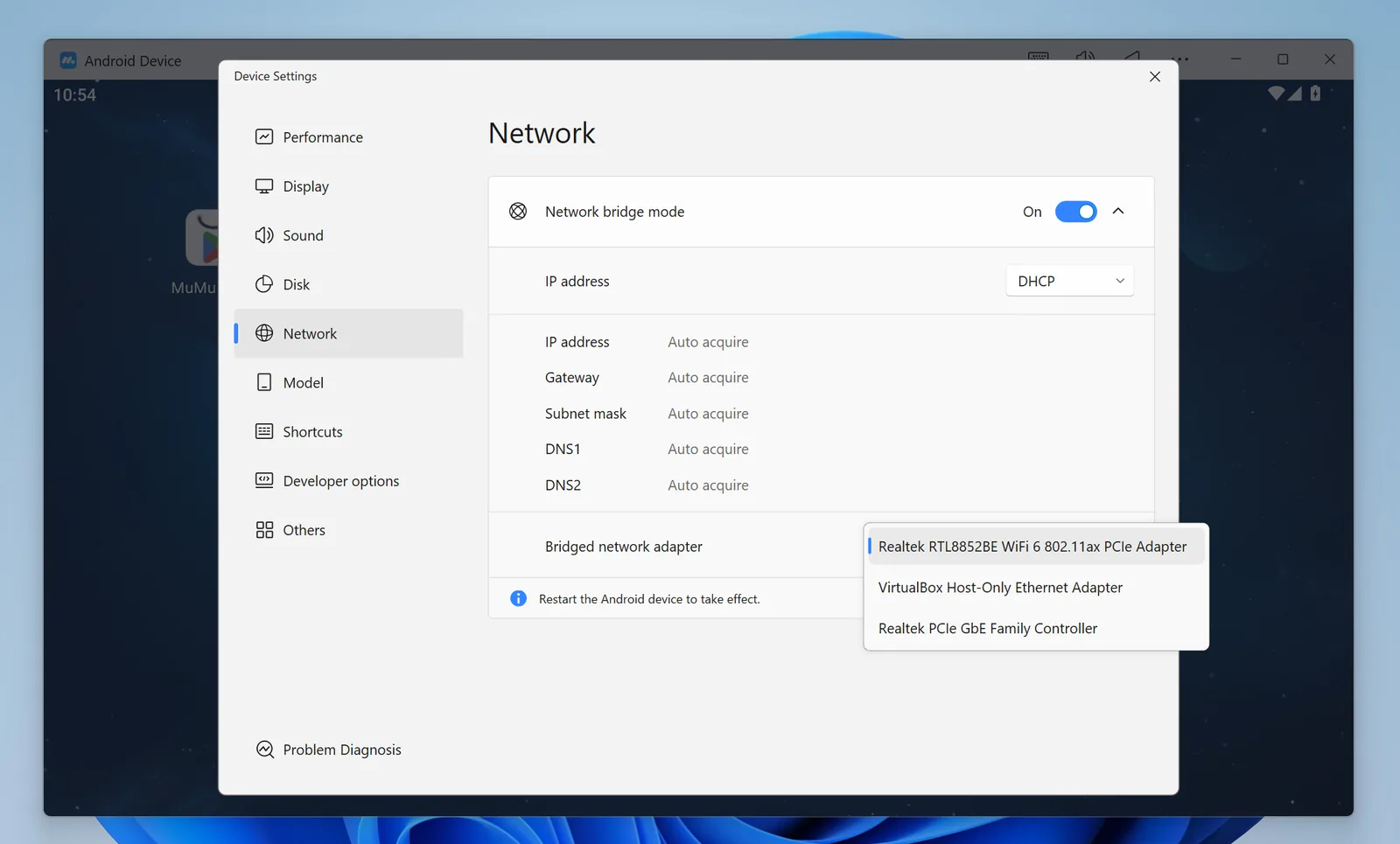
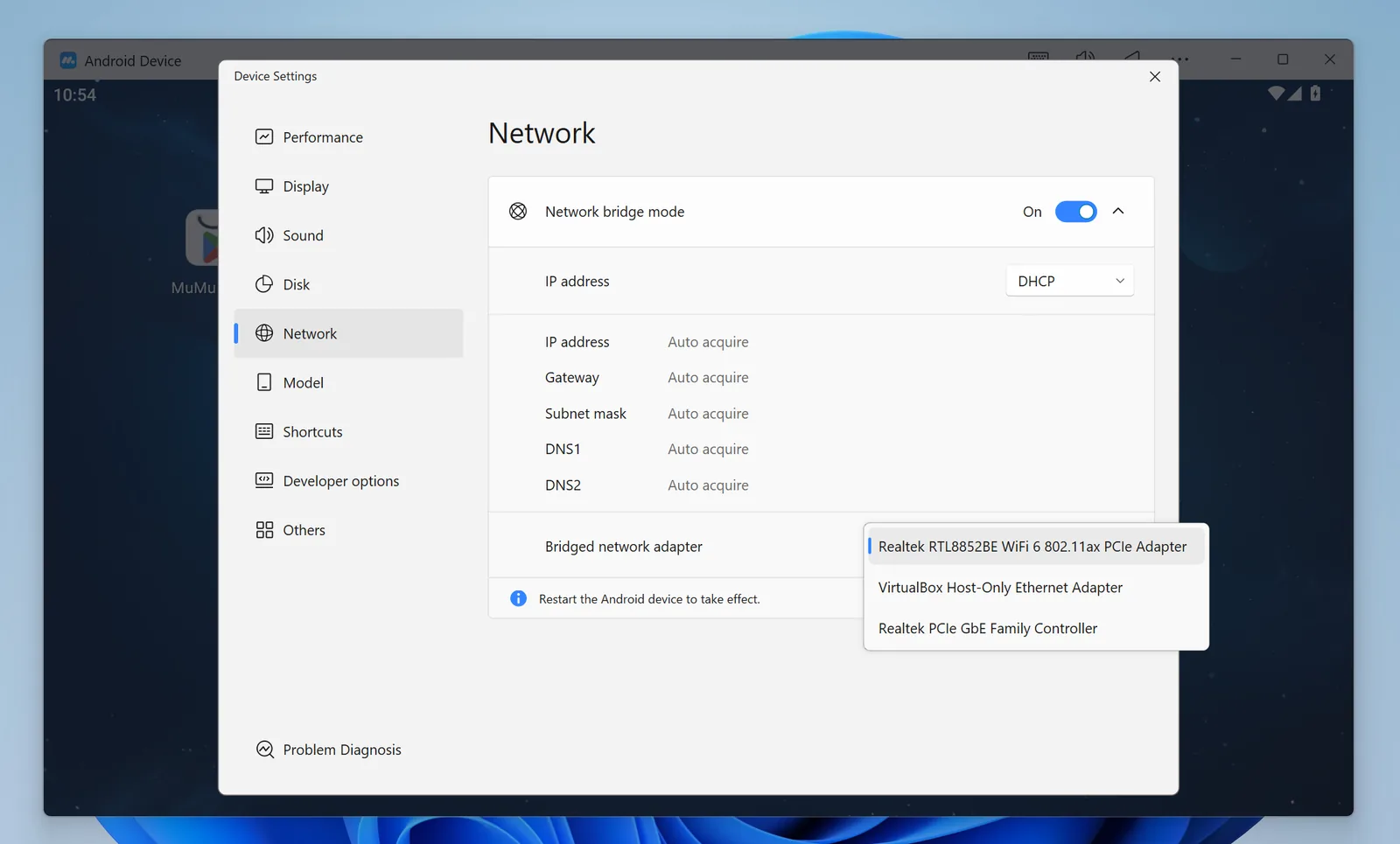
For Bridged network adapter, choose the adapter that matches your connection:
- Realtek WiFi if the machine uses Wi-Fi.
- Realtek PCIe GbE Family Controller if the machine uses a wired LAN connection.
VT virtualization
Check whether virtualization technology (VT) is enabled on the machine.
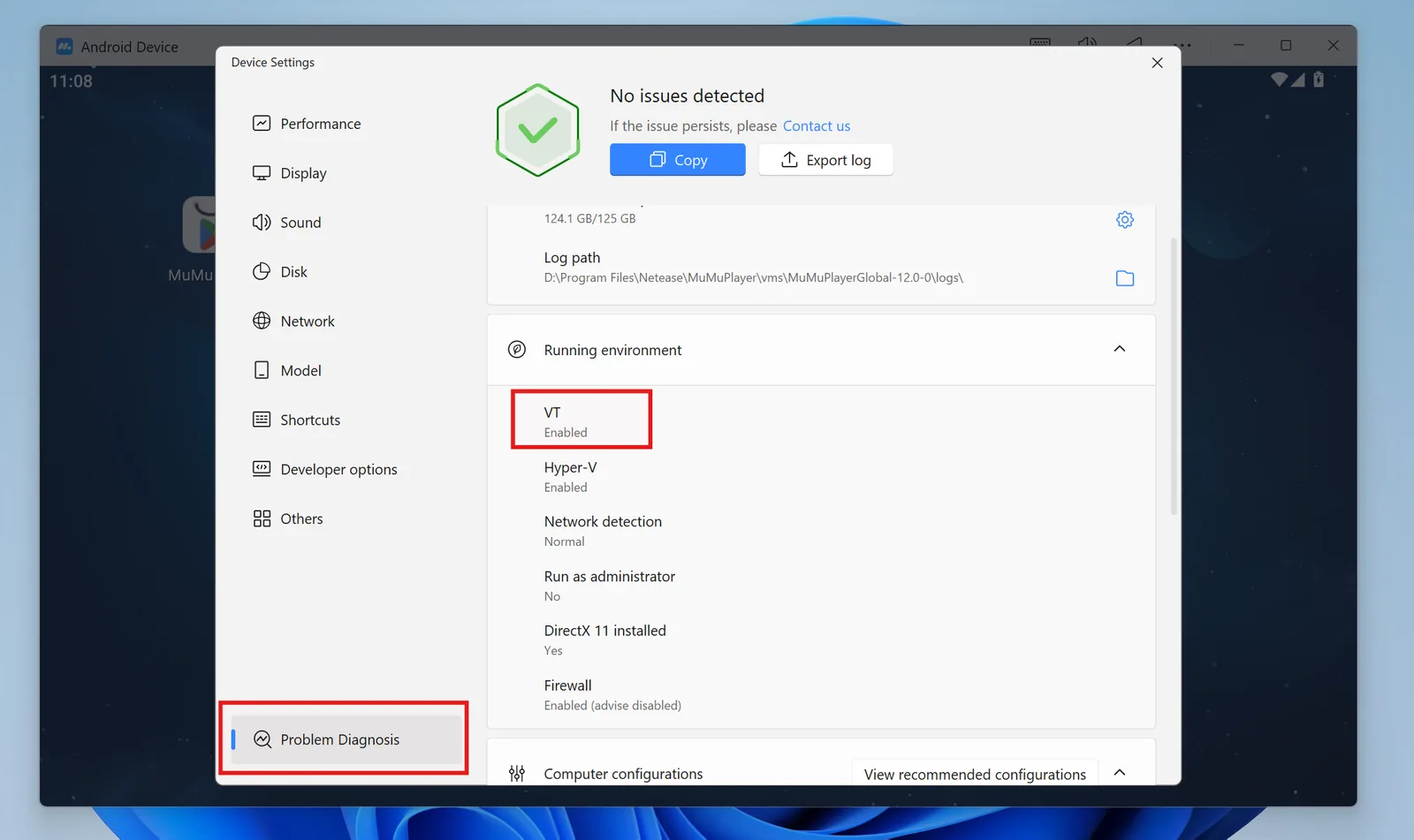
If VT is disabled, follow MuMu's official guide:
https://www.mumuplayer.com/vi/help/win/enable-vt.html
If setup gets stuck, create a support ticket in Discord so the team can help.
Performance settings
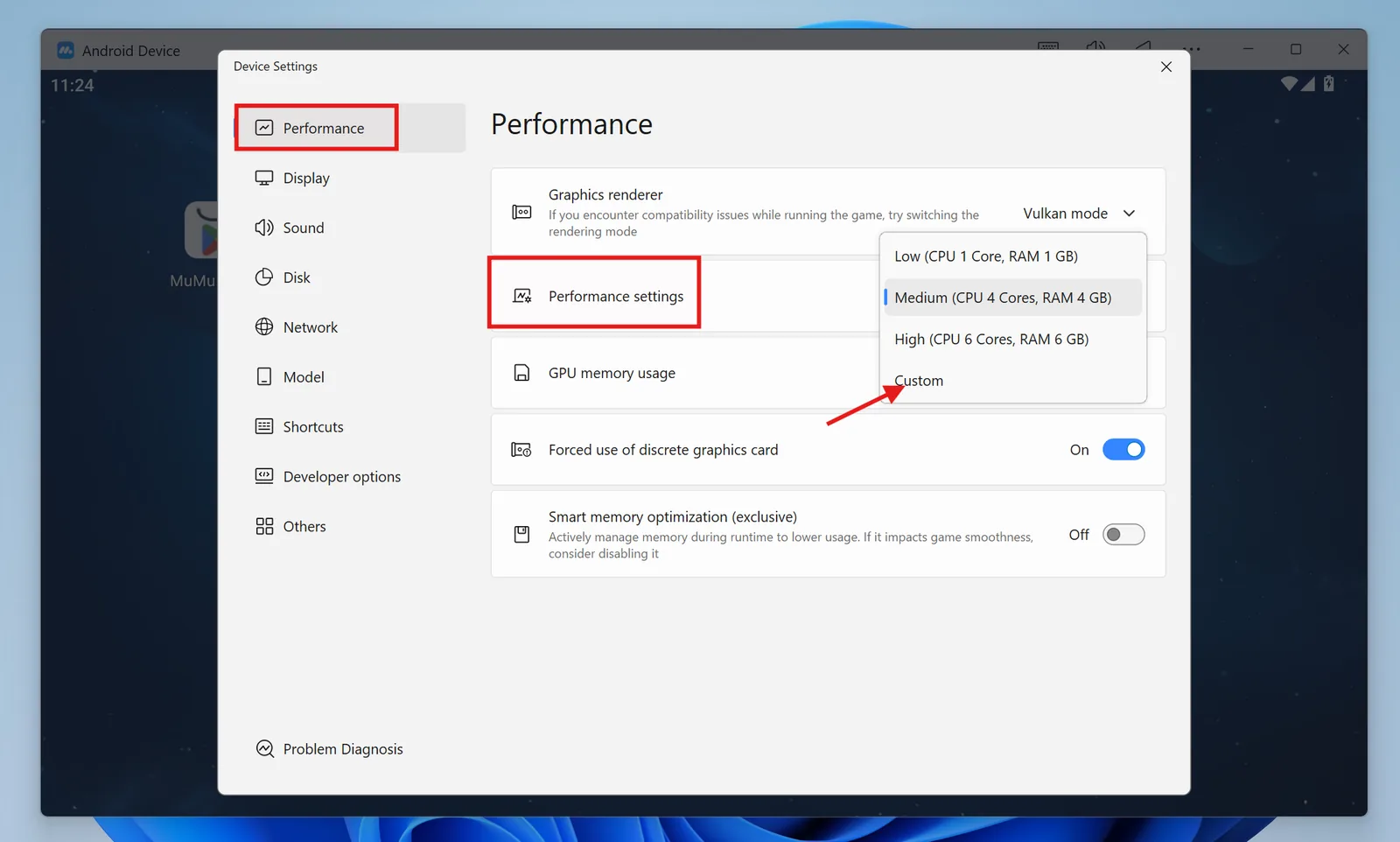
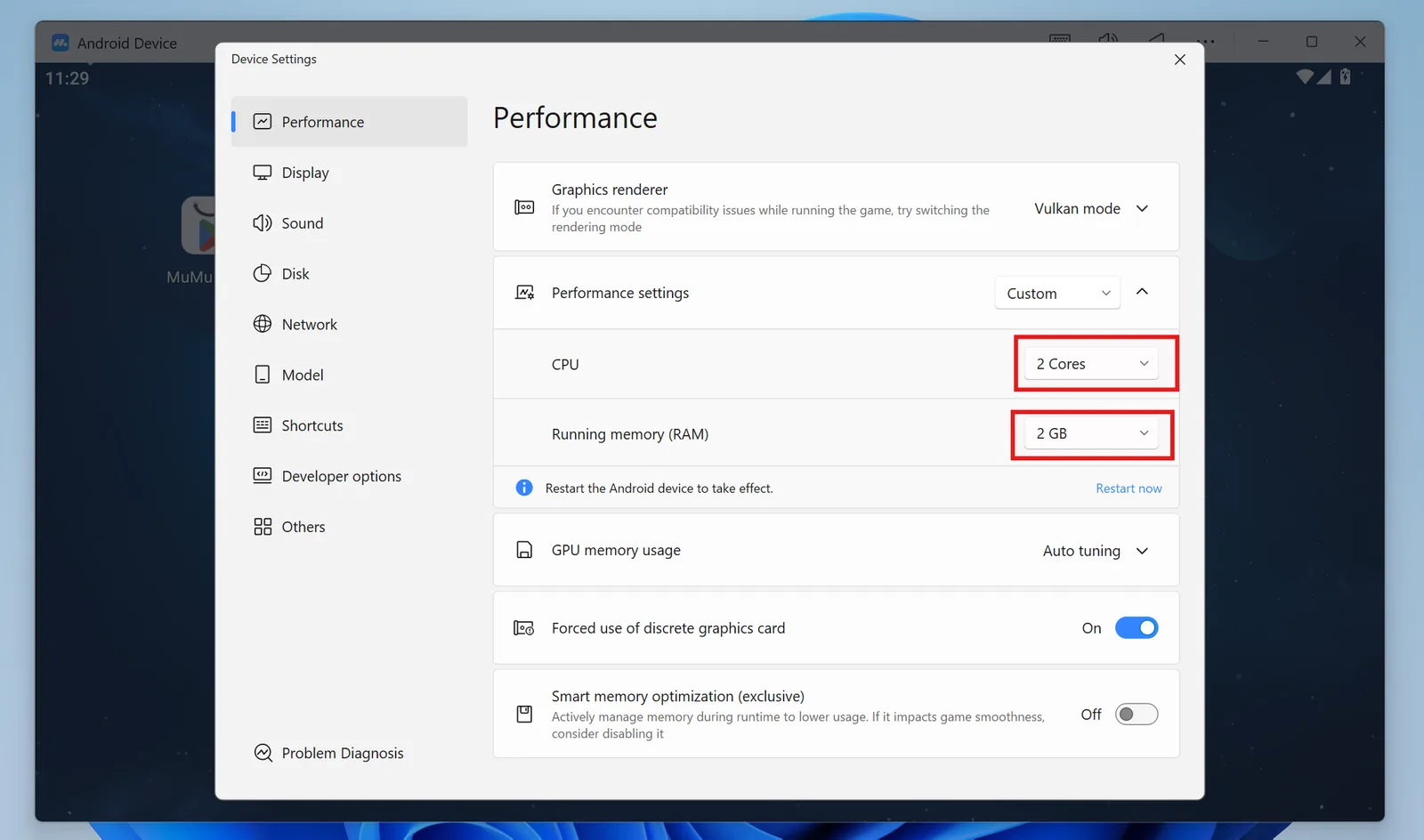
For the Performance settings, use:
- CPU: 2 cores
- RAM: 2 GB
Display settings
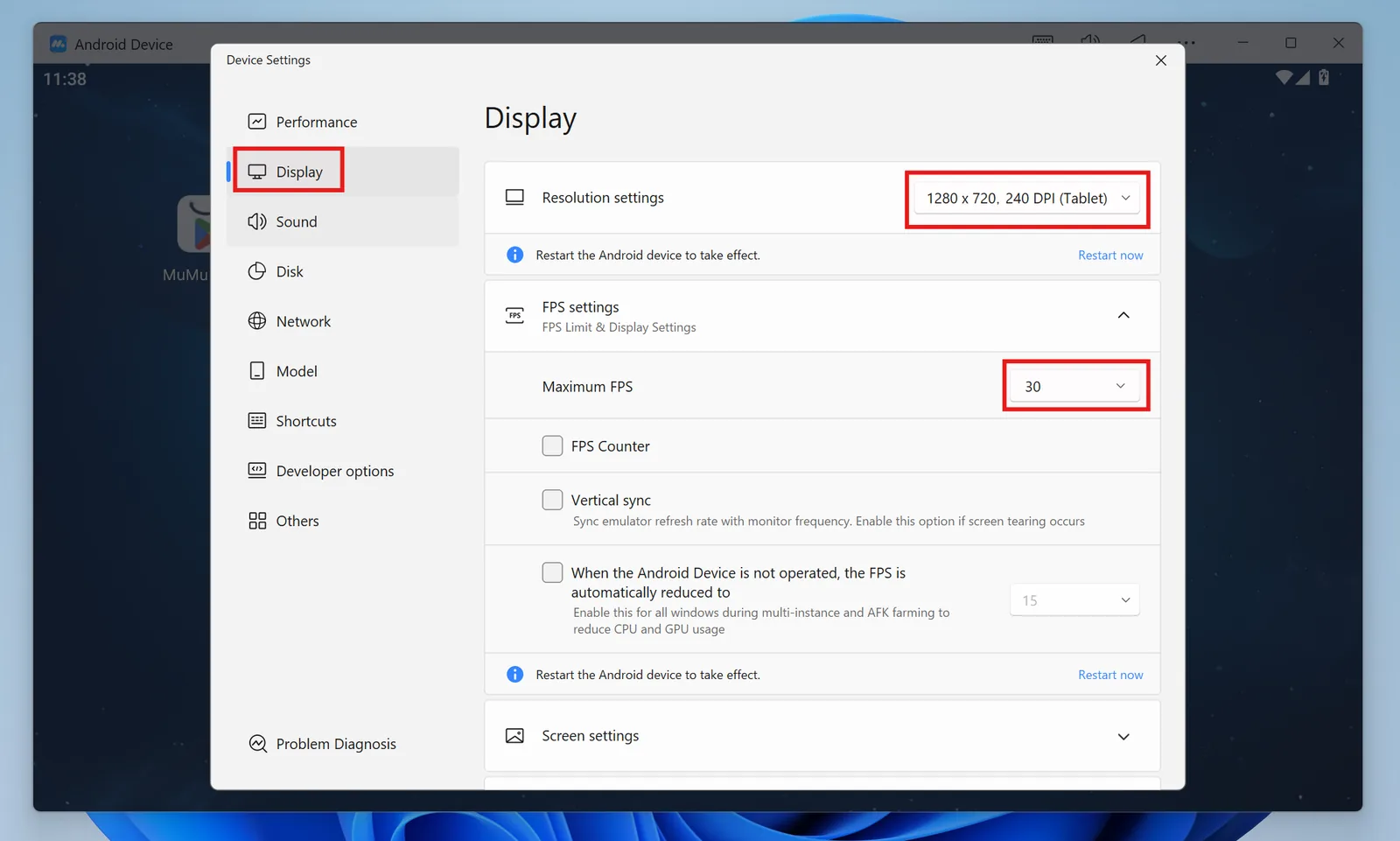
For Display, use:
- Resolution: 1280x720
- DPI: 240
- Maximum FPS: 30
These settings help flows behave consistently across machines.
Sound and restart
If you run many emulator instances, enable Disable System Sound to reduce unnecessary load.
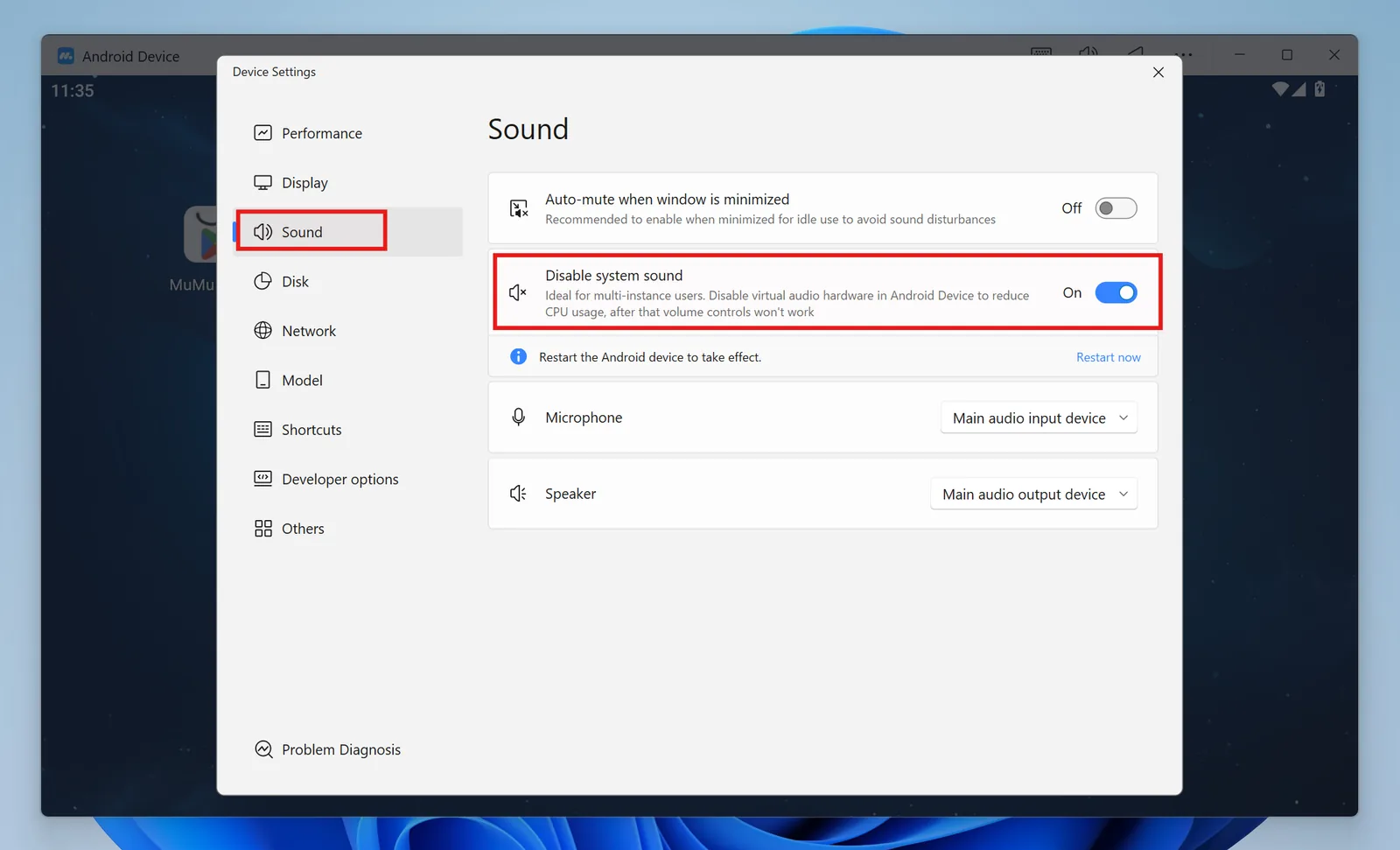
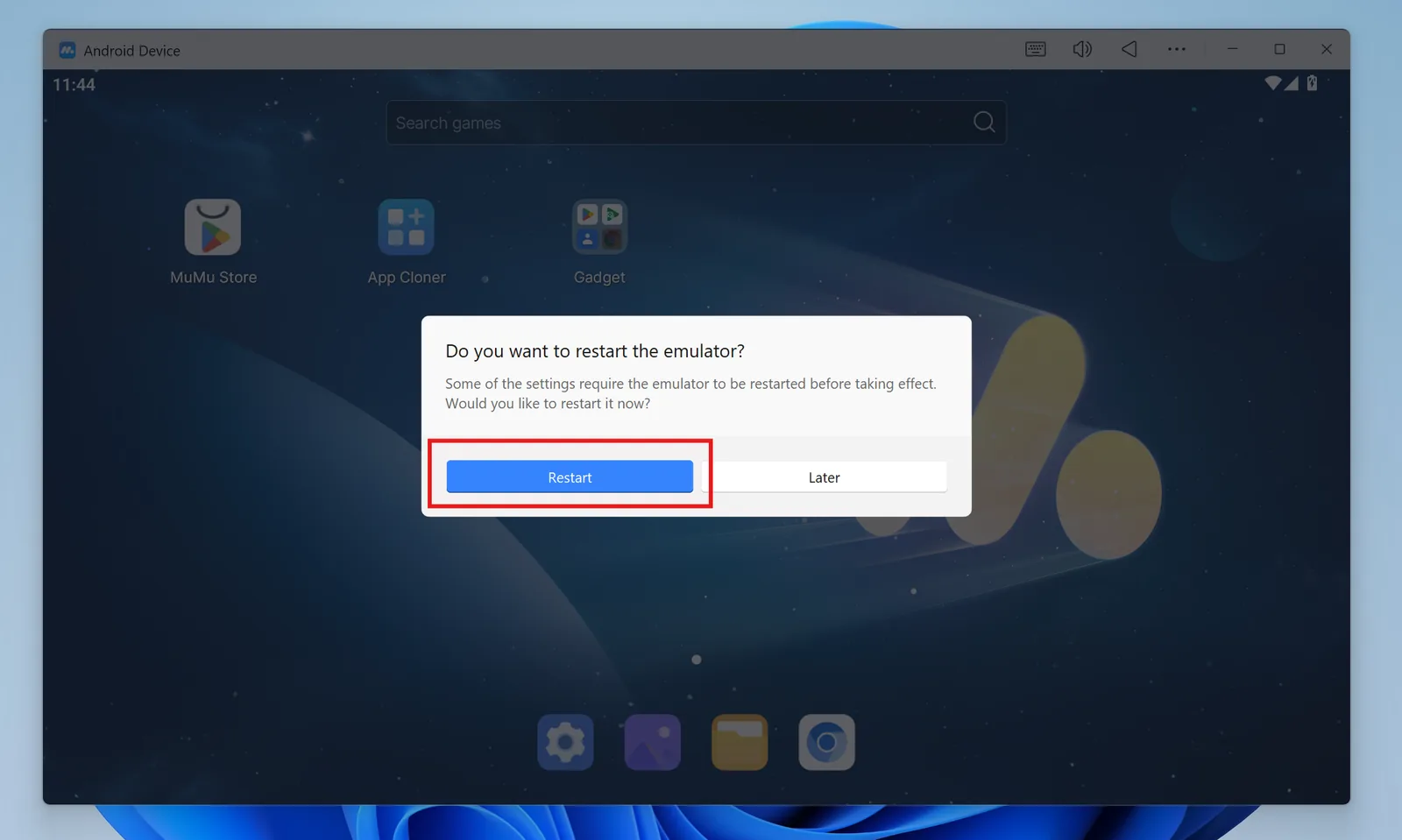
After changing the settings, restart the emulator so the changes apply.
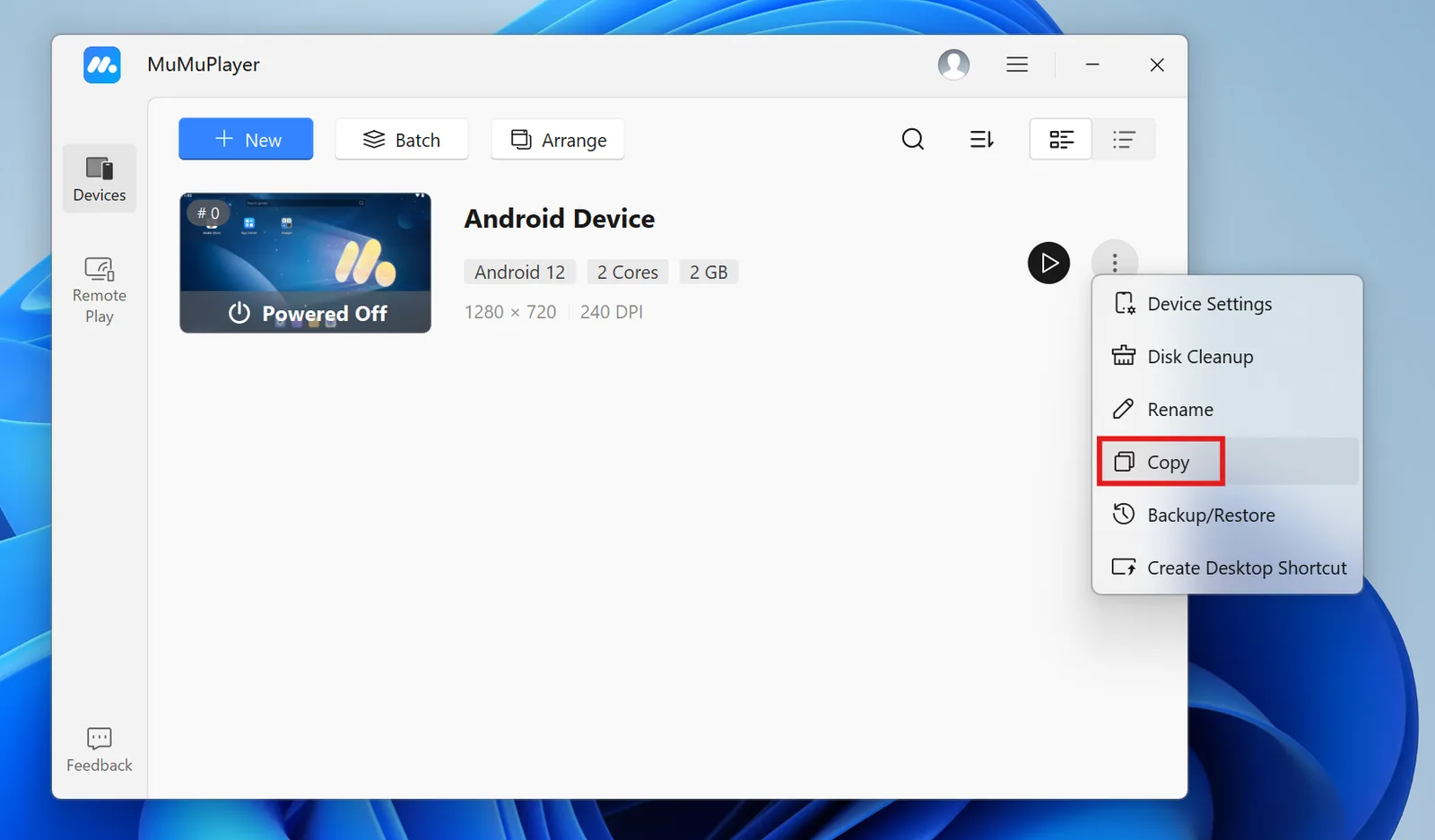
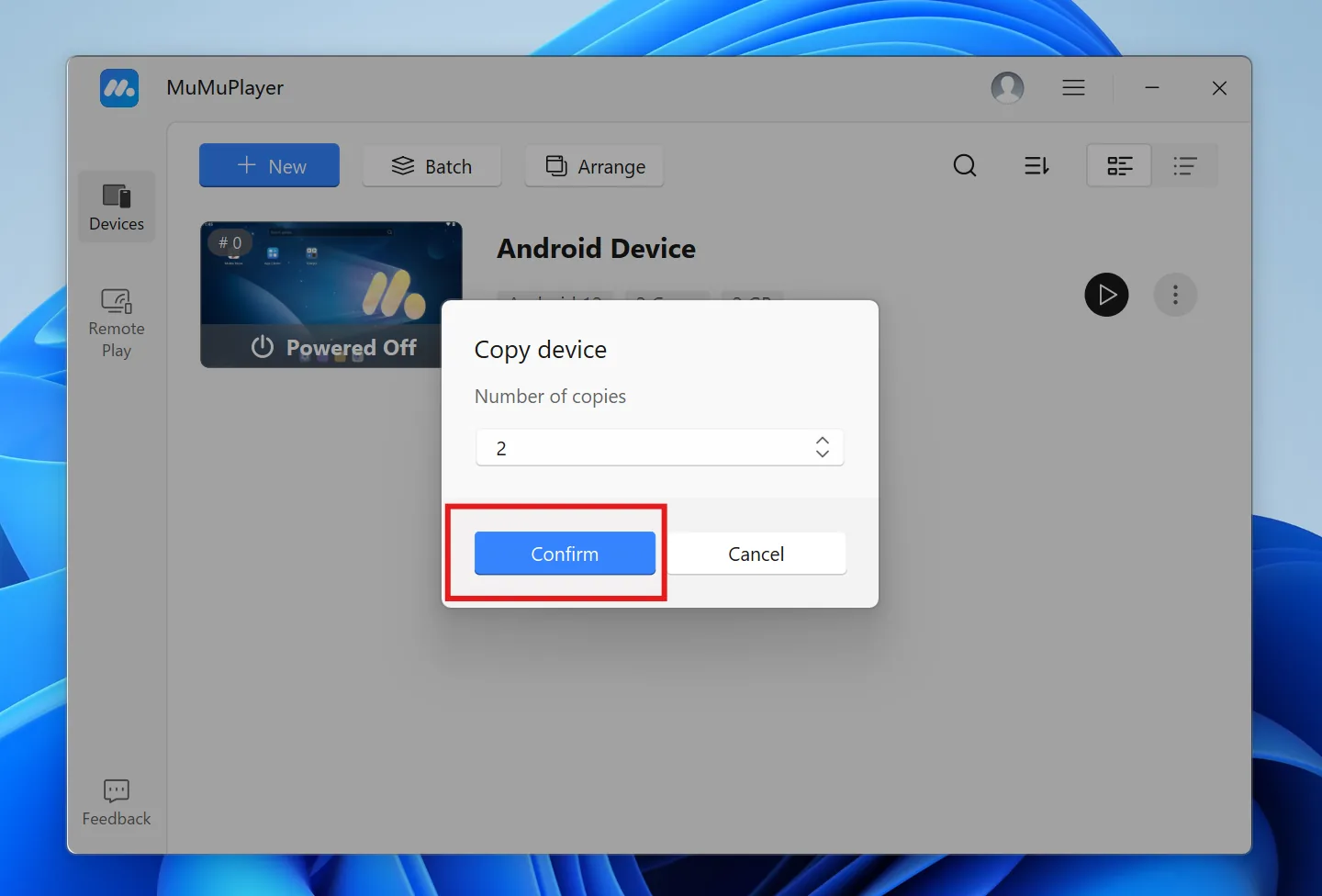
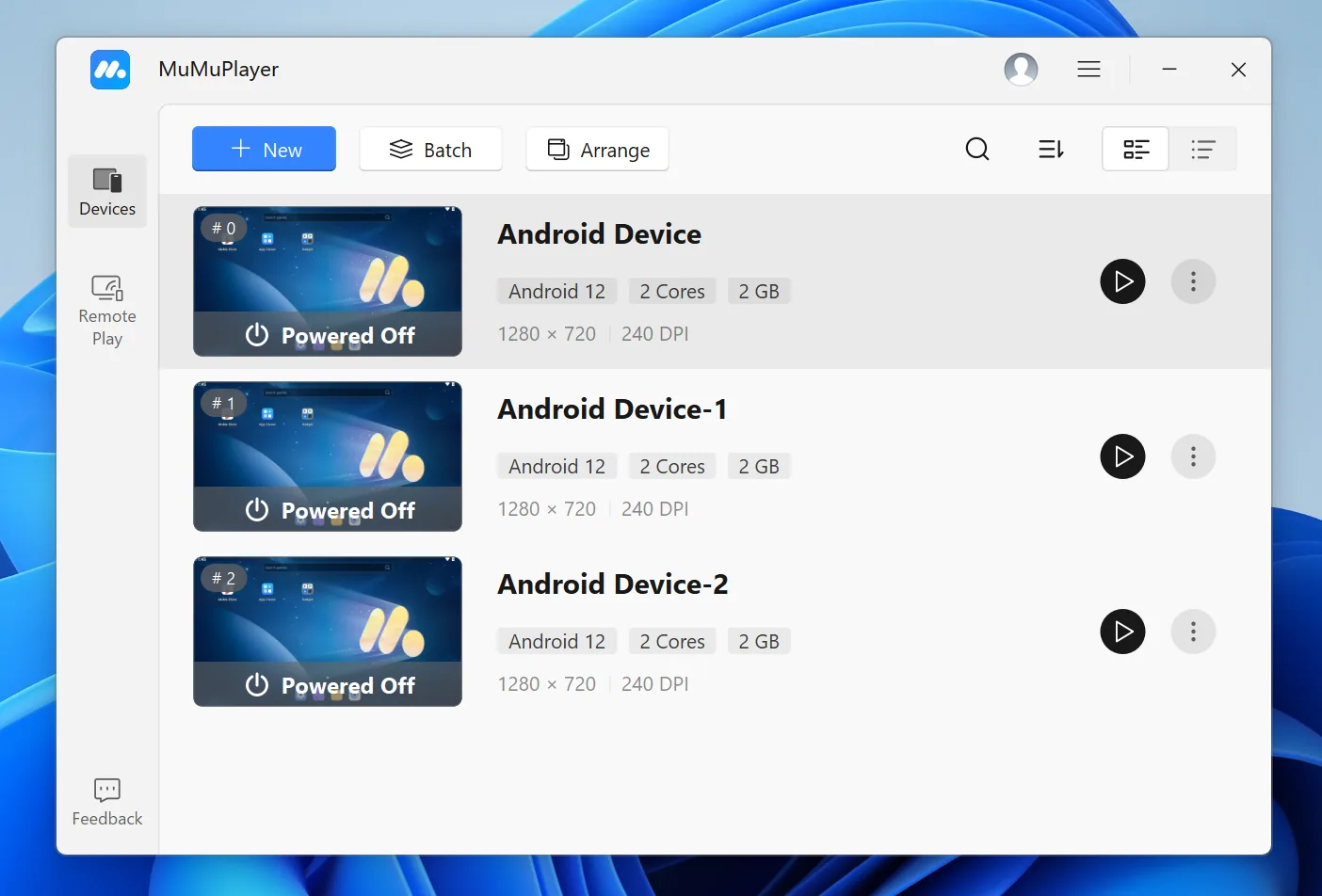
Copy an instance
If you need multiple emulator instances with the same configuration, use MuMu's Copy action.